UDOIT
Get started on making your course accessible by using the power and facility of UDOIT!
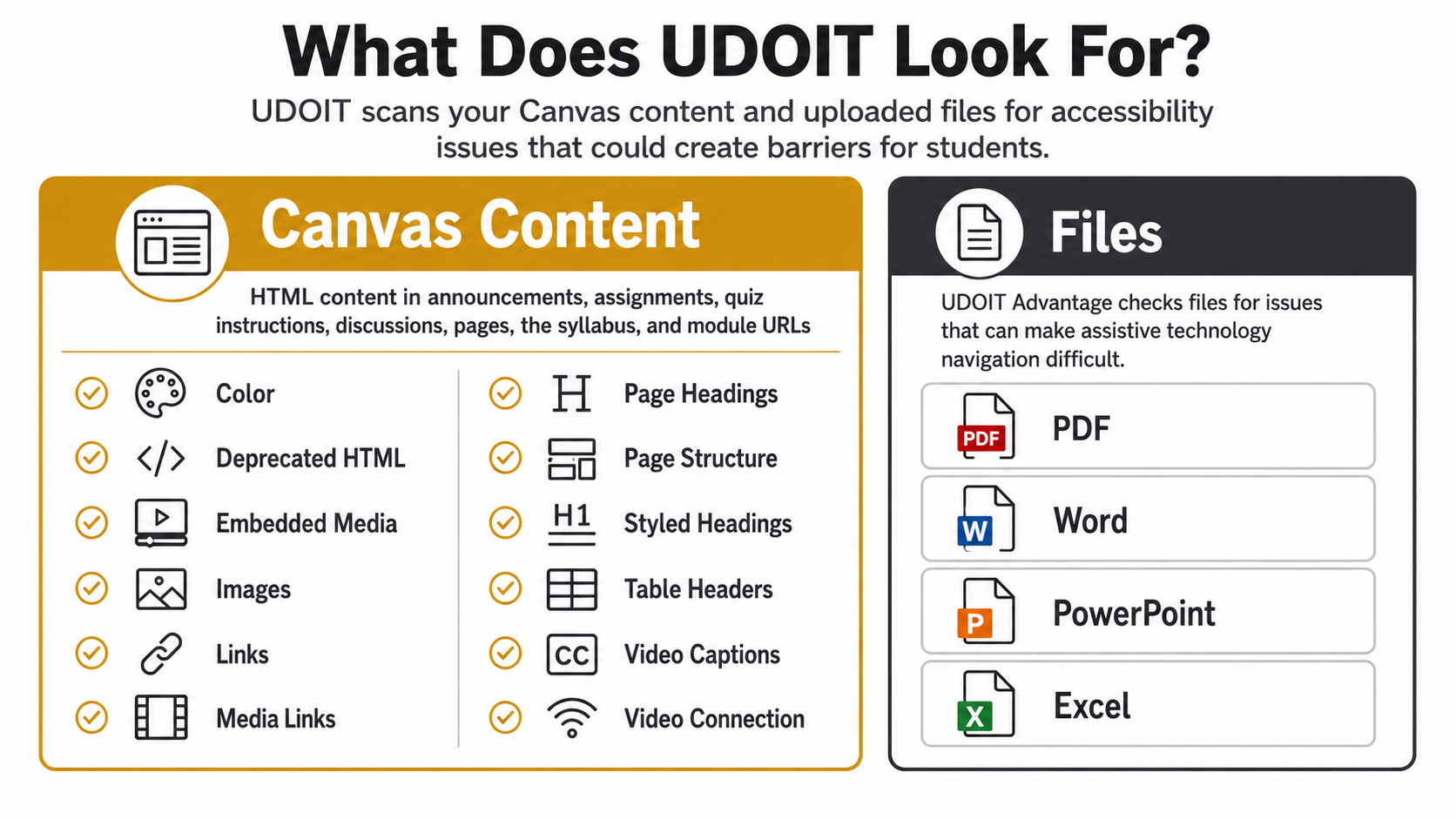
UDOIT is an accessibility tool integrated in Canvas that helps instructors identify and fix accessibility issues in their course content. UDOIT scans HTML content in pages, assignments, discussions, announcements, quiz instructions, and files.
Get Started with UDOIT
The steps outlined below are designed to help you get started quickly. Download the Getting Started with UDOIT [DOC] for your convenience.
Pro Tip: For best results, use TidyUP before starting your UDOIT accessibility scan. This will ensure that only active and relevant course content materials are being evaluated during the scan and reduces false positives.
Start UDOIT
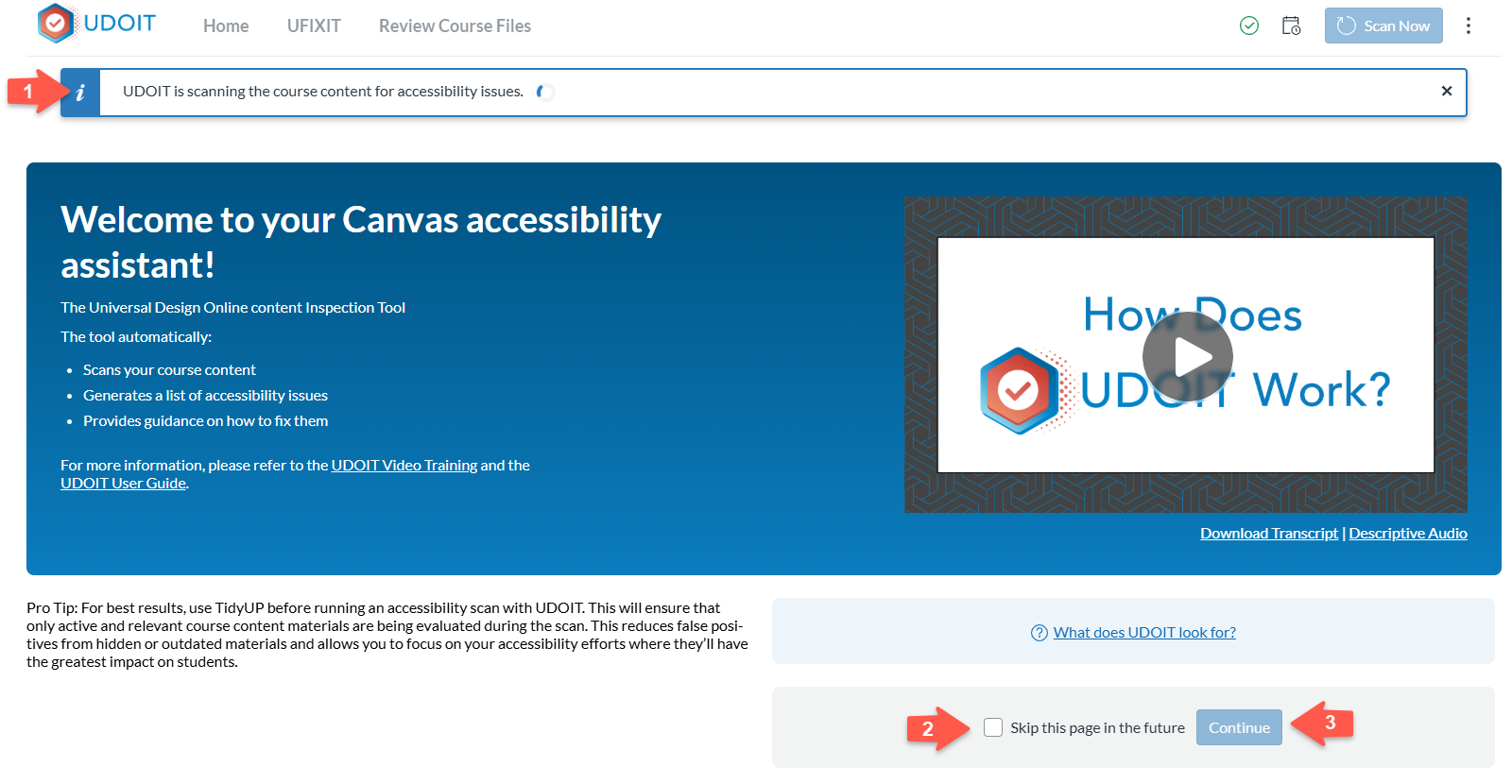
Access UDOIT from your Canvas course navigation; the welcome page will appear for users who have accessed UDOIT in a course for the first time. UDOIT will begin scanning automatically.
- Wait for UDOIT to scan your course for accessibility.
- Make sure to check the "Skip this page in the future” box
- Click Continue.
The Accessibility Score
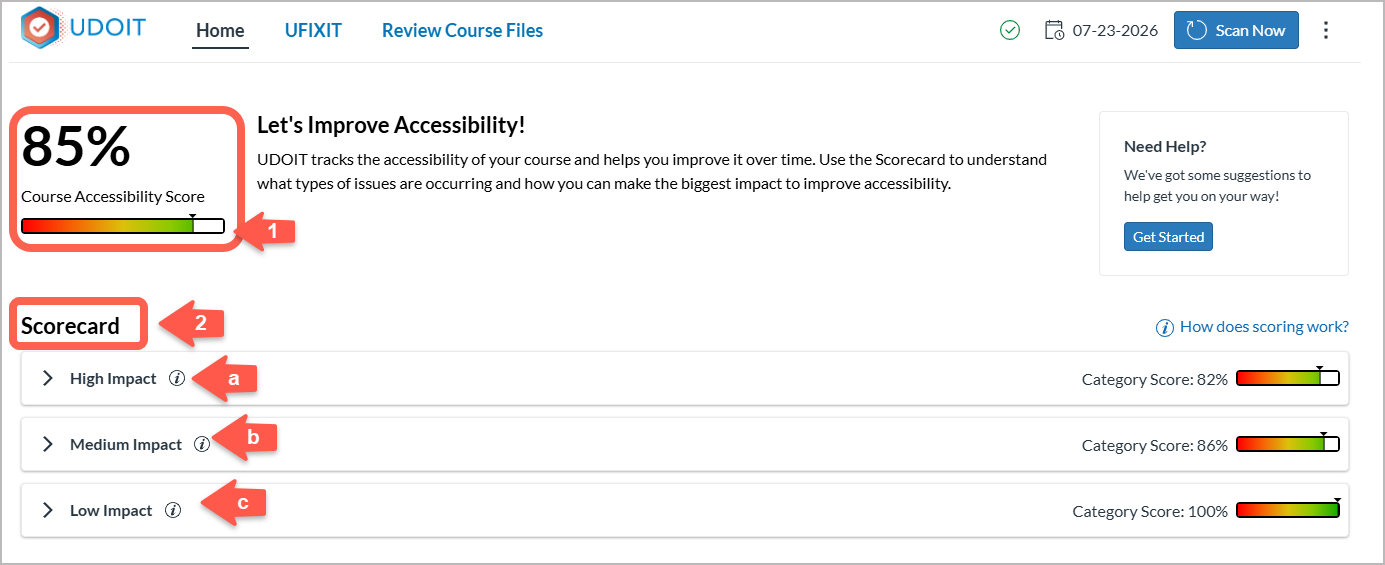
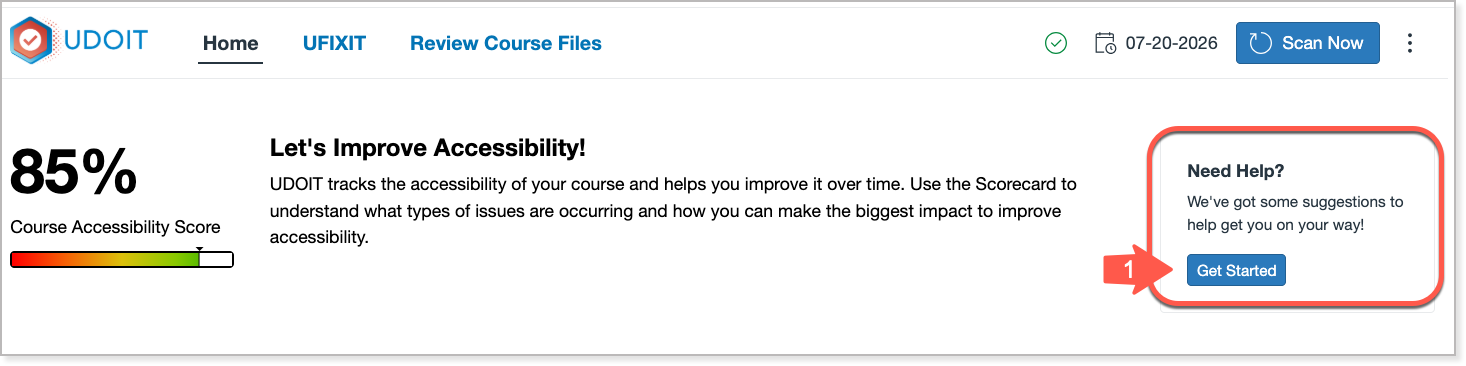
This overall score shows a percentage grade (from 0% to 100%) reflecting how accessible your Canvas course is to students with disabilities. A higher score means your course content is more accessible.
The Scorecard
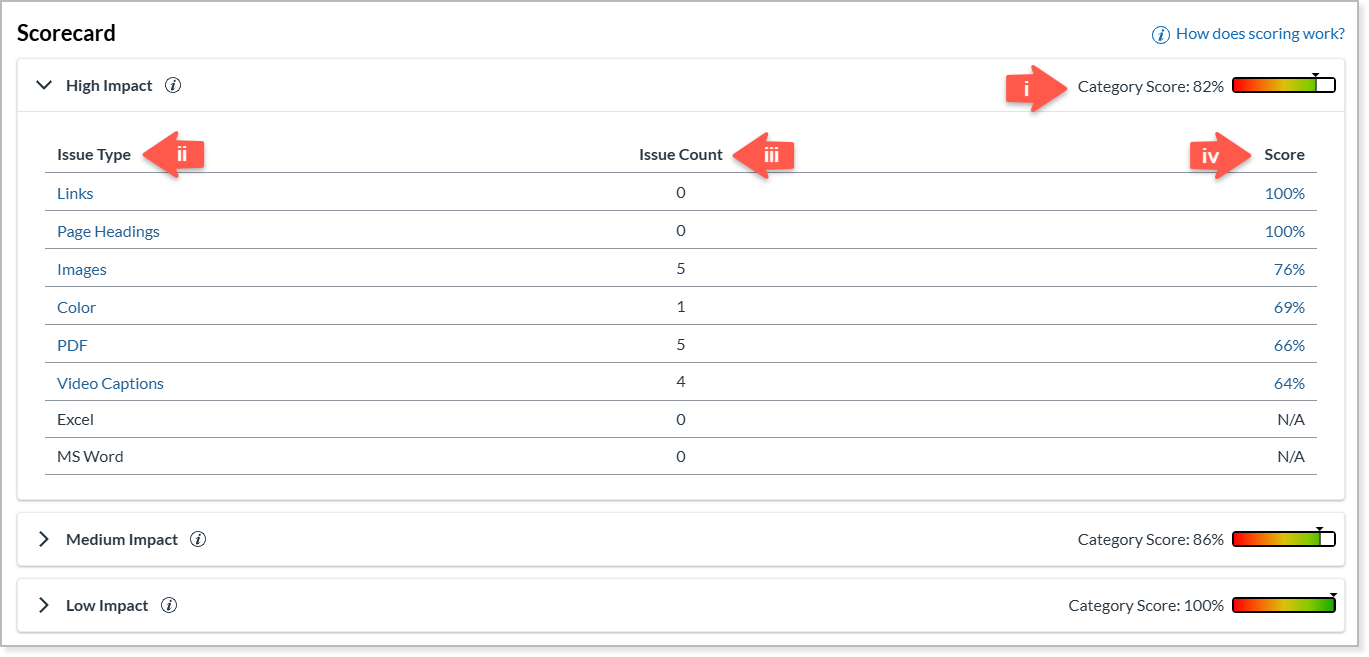
This interactive scorecard provides an overall accessibility score for a Canvas course and highlights specific areas. UDOIT checks your Canvas content and files for several accessibility issues, and assigns them varying severity levels behind the scenes, based on their impact on users.
Based on severity of the accessibility issues, they are sorted into three Impact Categories: High, Medium, and Low. Each Impact Category consists of the following elements:
- Category Score: Reflects how effectively a Canvas course complies with accessibility standards.
- Issue Type: Displays the different types of accessibility issues detected by UDOIT.
- Issue Count: Lists number of issue types that exist in a Canvas course.
- Score: Lists the accessibility score for each Issue type.
There are several ways to fix the accessibility issues detected by UDOIT. Navigate to the "Need Help?" section of your UDOIT dashboard and click "Get Started."
Quick Start Options
Under "Ways to Get Started," choose one of the following quick-start options:
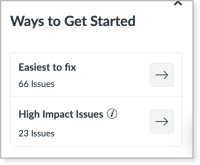
- Easiest to Fix – Focus on issues that are typically quick to resolve, such as: Missing alternative (alt) text for images, Non-descriptive link text, Skipped heading levels, Other simple accessibility fixes
- High-Impact Issues – Prioritize issues that have the greatest impact on accessibility, including: links, page headings, images, color contrast, PDFs, video captions, MS Word documents.
Filter Options
You can also start by selecting from UDOIT's filter options to fix accessibility issues:
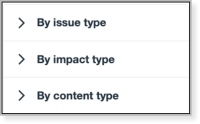
- By issue type - This filter allows you to prioritize specific types of accessibility issues, such as: color, embedded media, images, links, or more.
- By impact type - This filter allows you to prioritize issues based on the type of accessibility impact, including: visual, auditory, cognitive, or motor.
- By content type - this filter enables you to select whichever type of content you want to fix in your course, including: announcements, assignments, discussions, quizzes, pages, or syllabus.
No matter where you start, you will be taken to the UFIXIT Dashboard. In the image example below, the dashboard is filtered to show all active issues that are the easiest to fix:
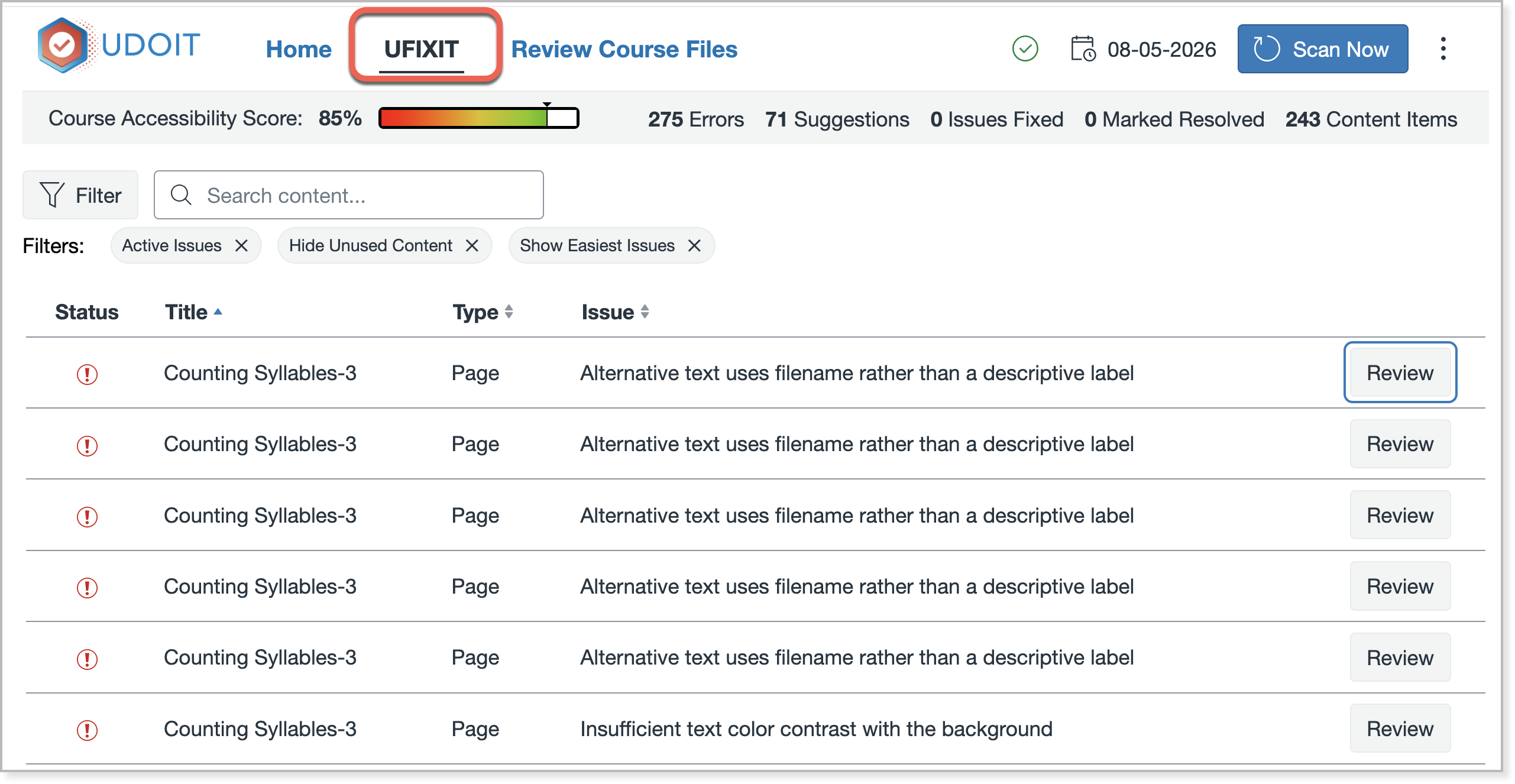
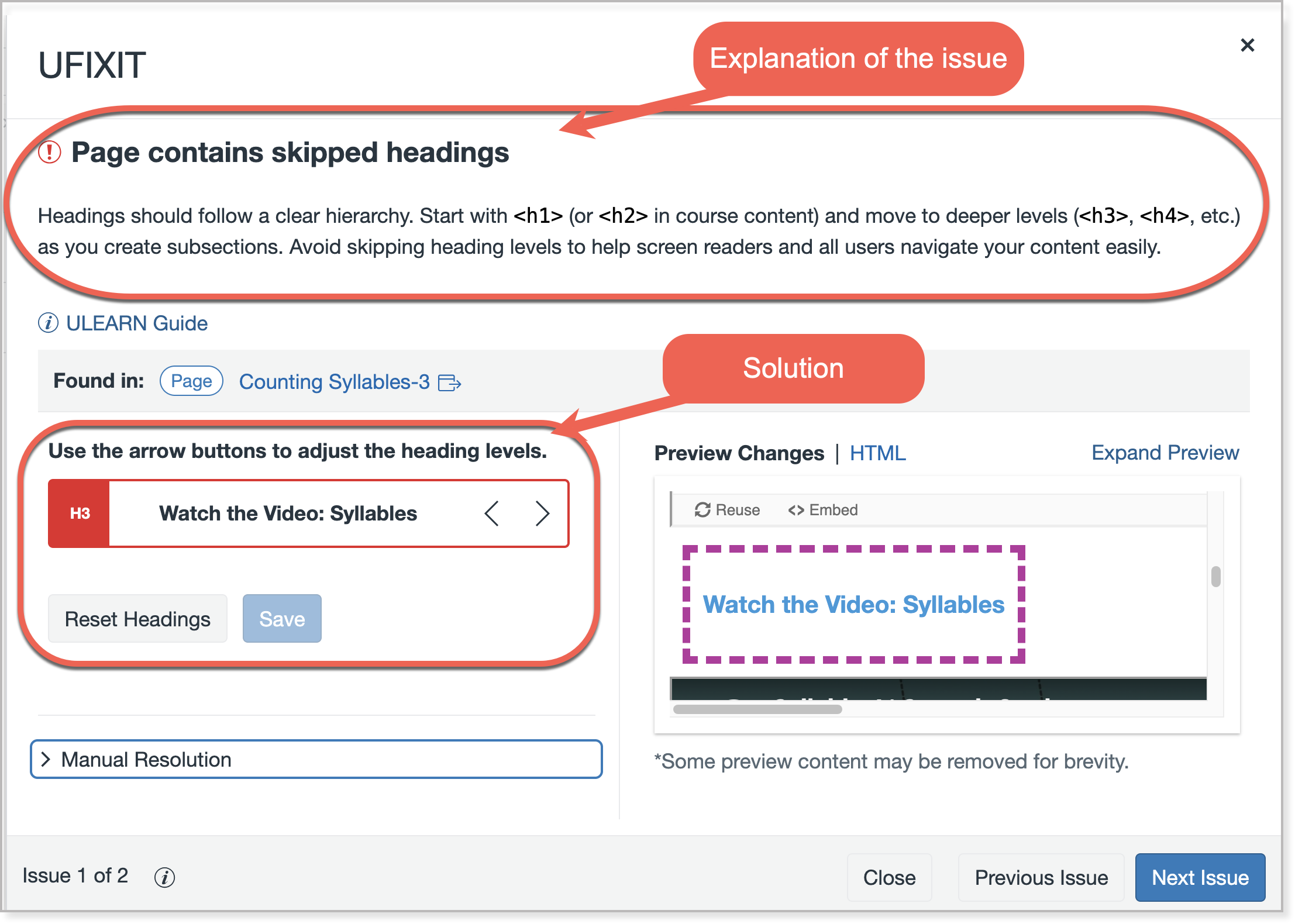
Select the "Review" button next to the issue you want to address. Read the explanation to understand the accessibility concern, and then apply the recommended solution provided:
Manually Resolve an Issue
If you prefer to fix the issue directly in Canvas, select the hyperlinked page title. The page containing the issue will open in a new browser tab.
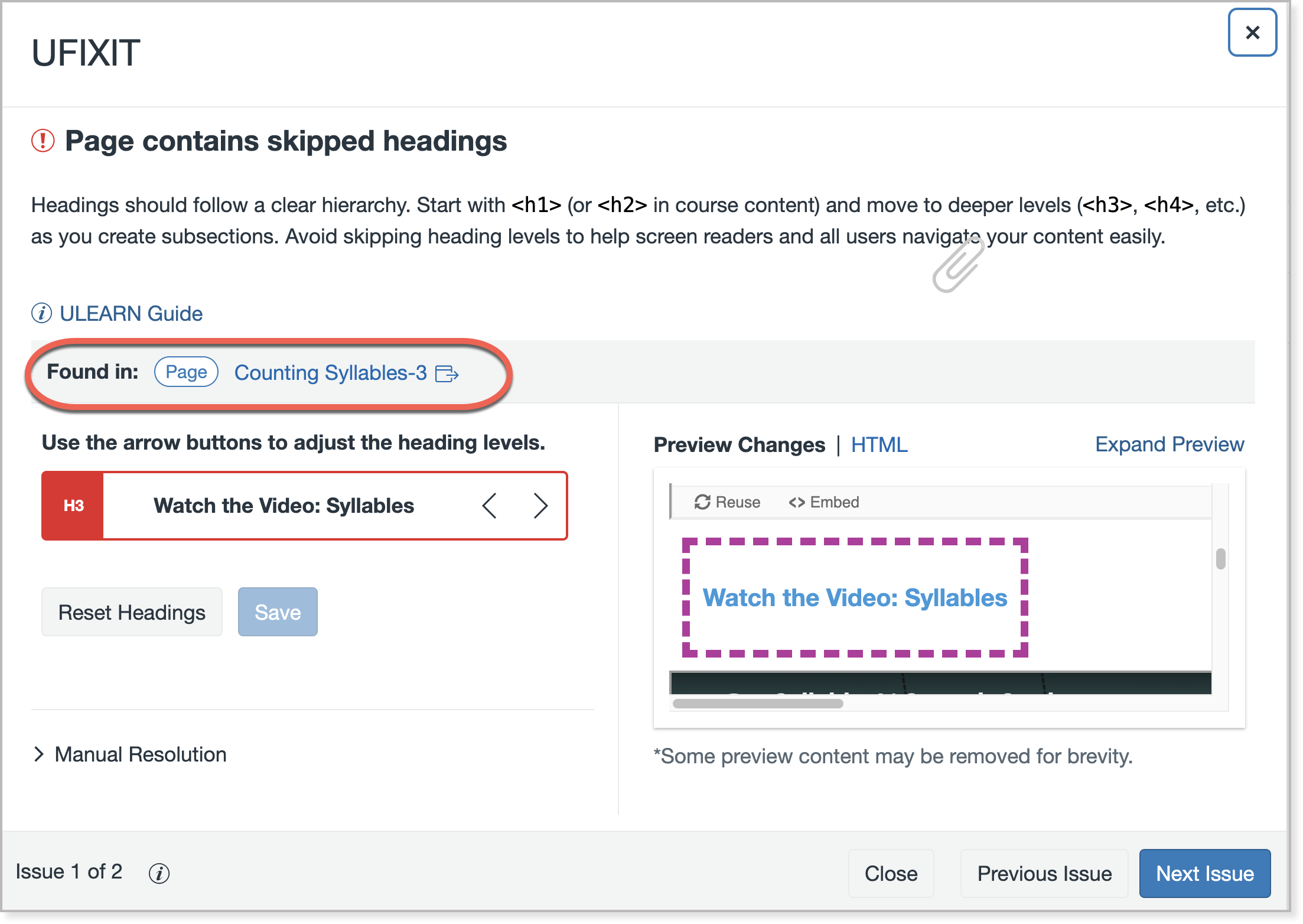
Use the Rich Content Editor in Canvas to make the necessary accessibility corrections.
After saving your changes, return to UFIXIT and select "Scan Now" to update the accessibility scan and verify that the issue has been resolved.
Mark Issues as Manually Resolved
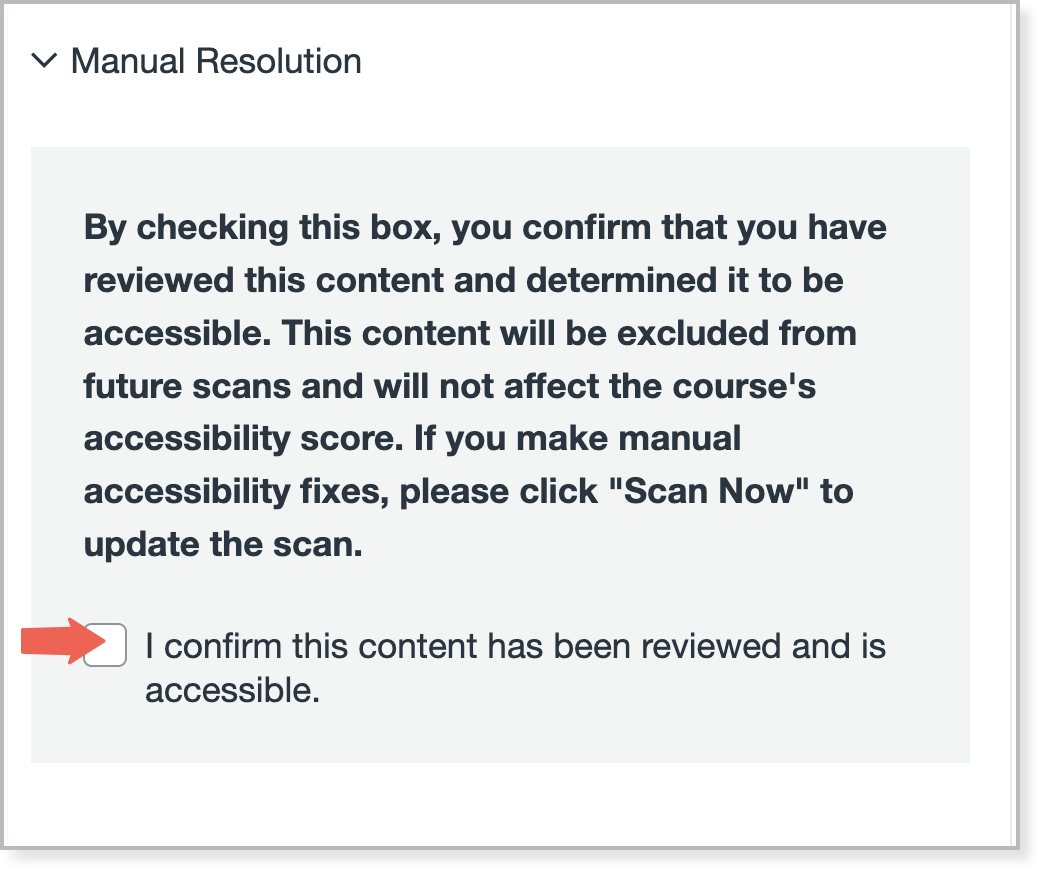
If you review an item and determine that it is already accessible (for example, auto-generated captions are accurate), you can mark the issue as resolved without making changes.
- Select "Manual Resolution"
- Confirm that you have reviewed the content and determined that it meets accessibility requirements.