Next Steps
After completing your course UDOIT scan to identify accessibility issues, you are ready to take the next steps to remediate identified issues. With your Canvas course open on the UDOIT scan screens, follow the guidance below to facilitate your understanding of the process.
When the UDOIT scan is complete, a prompt will display to select a remediation starting point. Two options are offered: "Quick Start" or "Filter." Select the pathway of your choice (we suggest using the "Easiest to Fix" option if you are new to UDOIT).
Quick Start
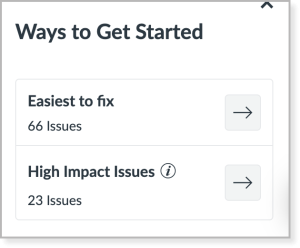
- Easiest to Fix: alt text for images, links, and headings
- High-Impact: headings, images, color contrast, PDFs, video captions, and documents
Filters

- By issue type: color, embedded media, images, and links
- By impact type: visual, auditory, cognitive, or motor access needs.
- By content type: Canvas announcements, assignments, discussions, quizzes, pages, or syllabus.
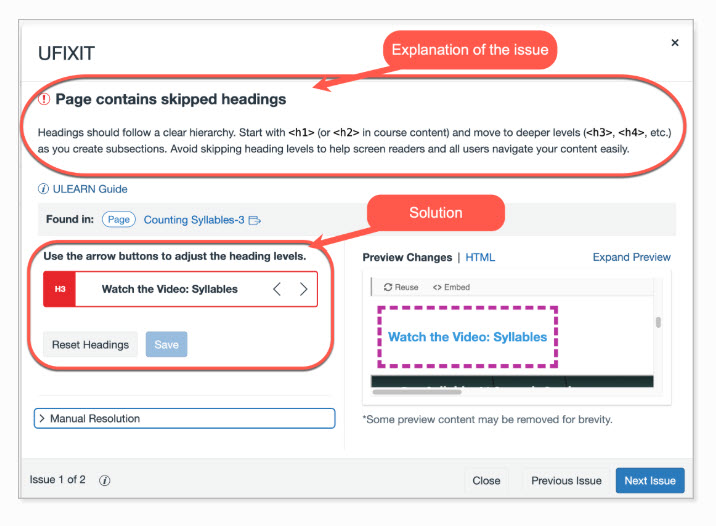
After selecting the pathway of your choice as described above in Step 1, UDOIT will automatically display the "UFIXIT Dashboard."
- Select the "Review" button next to any issue and read the explanation to better understand the accessibility concern.
- Apply the recommended solution provided by UDOIT on the same screen.
For more resources to optimize your use of this tool, visit the UDOIT support page.
After fixing the issues in your course identified by your UDOIT scan, you may find that you still have content that needs attention such as uploaded DOC and PDF documents and media files.
Document Remediation
Create accessible documents from the start by following the requirements and best practices. If you have complex documents, or are unfamiliar with confirming the accessibility of your documents, submit your documents for remediation to the CSULB Remediation Support team.
Uploaded Media
Follow these tips to address the most common issues in video and audio content:
- Caption your videos:
- Includes accurate captions, punctuation, and speaker identification on video embedded in Canvas or linked from another platform.
- Utilize the Kaltura Media Gallery to edit captions in Canvas.
- Provide transcripts for audio-only media:
- Provide written transcripts for podcasts, recorded lectures, or other audio material that is non-video content.
- Use the Kaltura Media Gallery to edit transcripts in Canvas.
- Use CSULB captioning resources:
- Use the self-serve Beach Captions tool for captioning videos you do not own (i.e., YouTube or Vimeo).
- Submit an audio and video remediation support TDX ticket to request captioning support for your media.
- Visit the Bob Murphy Access Center captioning services webpage for tutorials and to access their Captioning Guide [PDF].