Secure Your Sign-In Before January 4, 2027
Multi-Factor Authentication (MFA) Update
Text messages and phone calls will no longer be available as multi-factor authentication (MFA) methods. Students, faculty, and staff who currently use these methods must switch to the Microsoft Authenticator app to maintain access to CSULB accounts and services.
Best practice: Register more than one device.
It is highly recommended that you register the Microsoft Authenticator app on more than one trusted device. This will help ensure continued access to campus services if your primary device is lost, damaged, replaced, or unavailable.
This is a carousel. Use next and previous buttons to navigate or jump to specific slides with the numbered "go to slide" buttons.


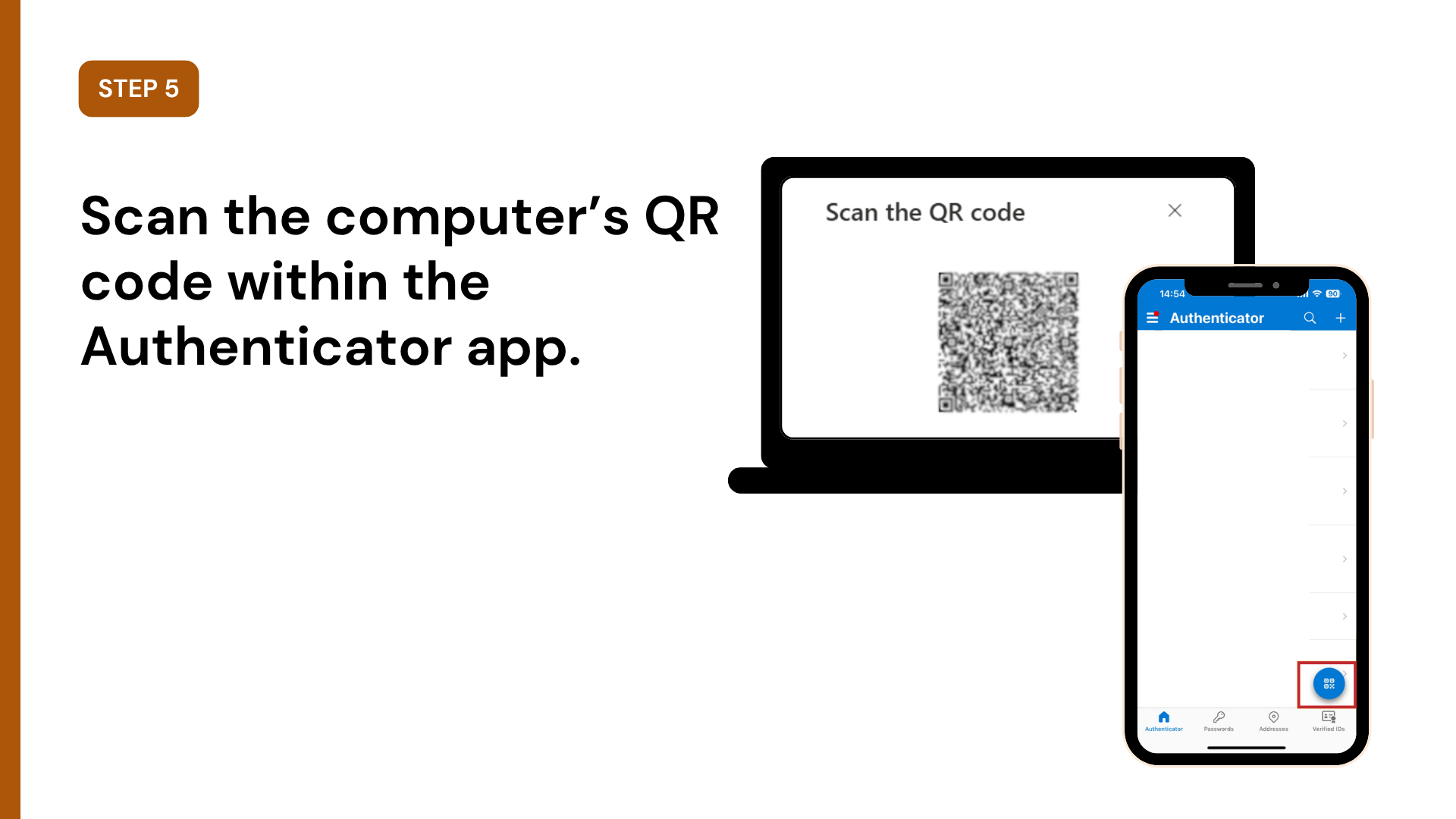
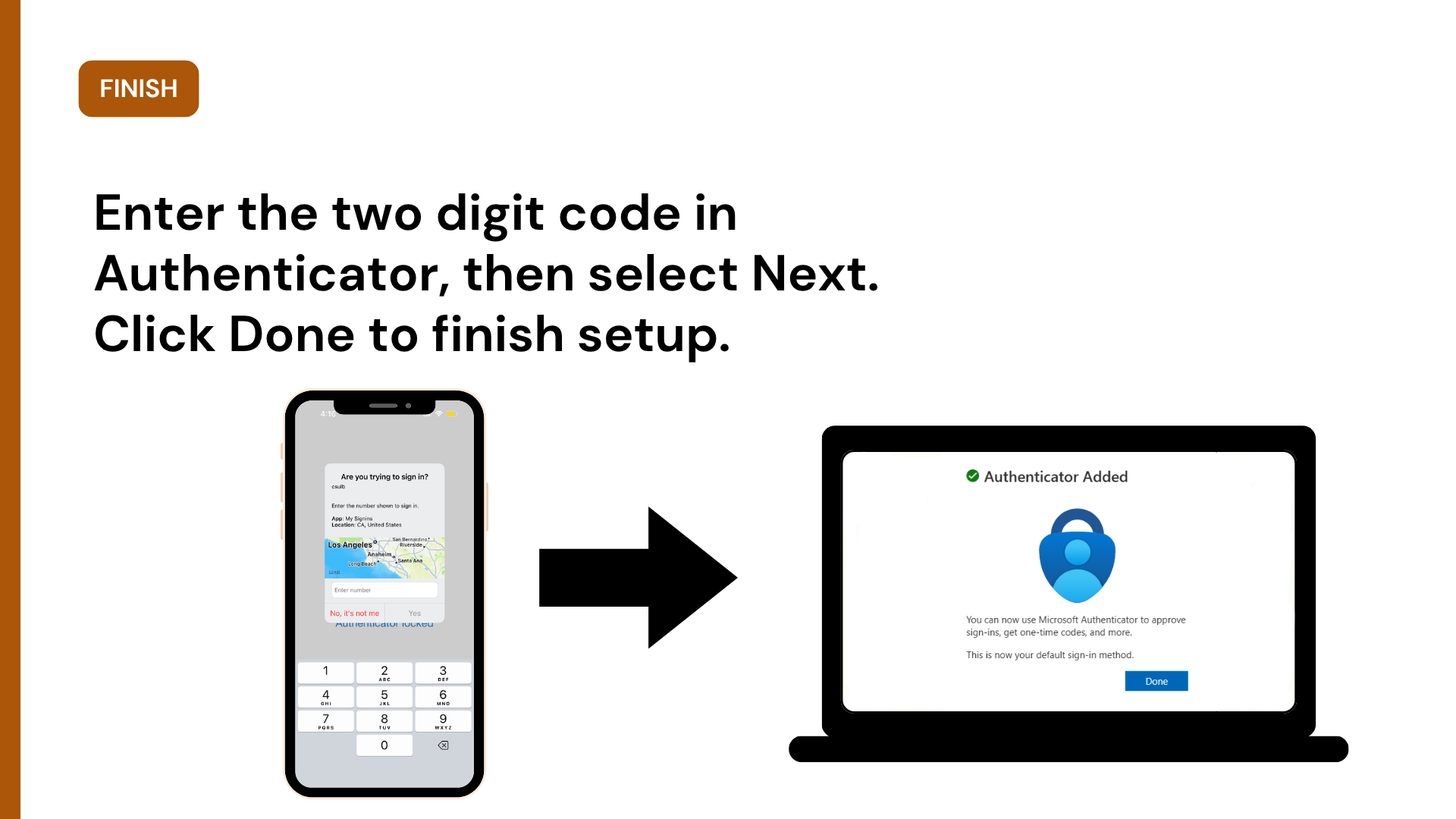

For step-by-step instructions, review our knowledgebase article: Set-Up Authenticator App from SSO Microsoft Profile
For step-by-step instructions, review our knowledgebase article: How to Manage MFA Login Methods/Devices
Please switch to the Microsoft Authenticator app by January 4, 2027.
Beginning January 4, 2027, text message and phone call verification will no longer be available for CSULB sign-ins. If you currently receive a text message or phone call to verify your identity, you will need to switch to the Microsoft Authenticator app before the deadline to avoid problems accessing your CSULB account and university services.
To better protect campus accounts, all CSU campuses are transitioning away from text and phone-call authentication as Microsoft retires these options. Microsoft Authenticator will provide a stronger, more secure way to verify your identity.
Microsoft Authenticator is an app that helps protect your CSULB account. When you sign in, the app will ask you to enter a number and approve the sign-in.
Yes, the app is free. Download Microsoft Authenticator from the Apple App Store on an iPhone or iPad or from the Google Play Store on an Android phone or tablet. Make sure Microsoft Corporation is listed as the publisher.
The app works on supported iPhones, iPads, Android phones, and Android tablets. It cannot be installed on a Windows computer, Mac, or smartwatch.
You need Wi-Fi or cellular data to receive and approve a sign-in notification.
You will need a multi-factor authentication (MFA) reset. To reset MFA so you can set up the app again, we must confirm your identity before we can make any security changes to your account.
For in-person assistance, you can visit the Technology Help Desk in the Horn Center Lobby on campus.
For virtual support, please start a video meeting from our website to meet with us.
One of our representatives will ask to see a valid form of photo ID to confirm your identity. You must present the original, physical ID in person or on camera; we cannot accept copies.
Acceptable IDs:
- Driver’s license
- State ID
- Passport
- CSULB ID card
The only method supported is the Microsoft Authenticator app. Contact the Technology Help Desk for additional questions.
No. Multi-factor authentication is required for all CSULB accounts and it cannot be turned off.