
ProCard IT Purchases
Procurement Compliance Review (PCR) Process Using CSUBUY
Before CSUBuy was implemented, any IT purchases whether through a requisition or ProCard required an IT review handled through a TeamDynamix PCR Form.
When making an IT purchase in CSUBUY, an IT Hardware or IT Software form is required to be completed. These forms include all the necessary questions related to purchasing IT goods, services, or software and will be reviewed by an IT Compliance Approver.
Since CSUBuy includes its own IT Hardware and IT Software forms within the requisition process, ITS and Procurement Services have decided that these CSUBuy forms will replace the TeamDynamix PCR Form for ProCard IT purchases.
This change is intended to eliminate confusion about which form to use and to prevent duplicating work. Therefore, ProCard users must now go into CSUBuy to complete the IT Hardware or IT Software form when making an IT purchase on their ProCard.
Instructions:
ProCard user must receive approval through this process BEFORE making the IT purchase.
ProCard user must also have a Shopper or Requester role in CSUBuy. If they do not, they must work with someone in their department who is a Shopper or Requester to follow these steps.
- In CSUBuy, select the IT Hardware or IT Software form
- Select “Supplier Not Known” as the supplier for the request form.
- Complete all fields.
Then click on Add and go to Cart.
Below is an example of the Shopping Cart
Image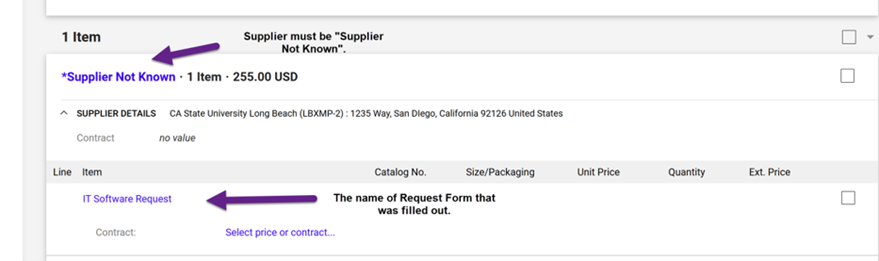
Change the Cart Name field to “ProCard Exception Review – [Cardholder Name]”.
Image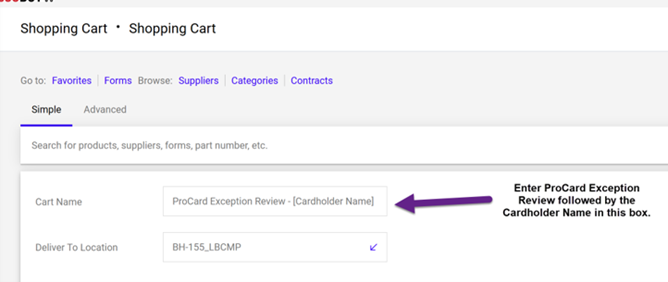
If you have the Shopper Role, you will need to assign the cart to an individual with a Requestor role, otherwise you will select the “Proceed to Checkout” button.
Image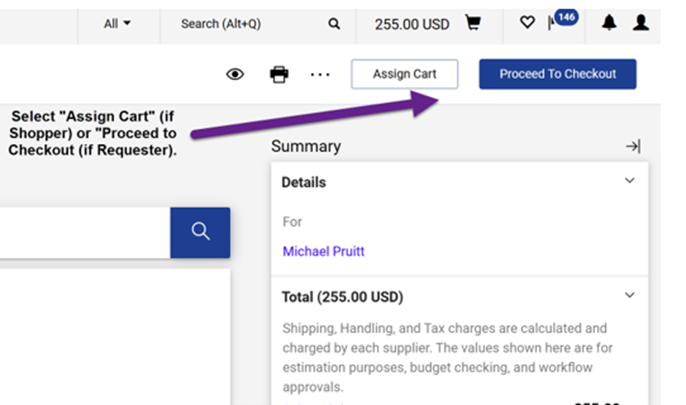
Enter the chartfield information by clicking on the pencil icon.
Image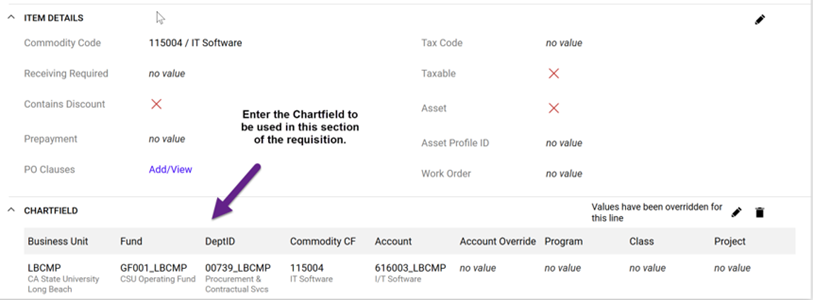
- Go to the Comments tab and enter the name of the software product/provider and attach a copy of the quote or order form to the CSUBuy Requisition.
Click on Submit Request
Image
- This will send the “Requisition” into the requisition workflow, which includes the DOA Approver review and the IT Compliance Approver review.
- Once the requisition has been reviewed by the DOA Approver and IT Compliance Approver, the request will come to Procurement. Procurement will “cancel” the requisition in CSUBUY and send the Shopper/Requester notification through the Comments section that the IT purchase has been approved alerting the ProCard user that the purchase may be made.
- ProCard user should attach the Comment email to the ProCard reconciliation as backup.
If the request is sent back to the Requester or Rejected by the DOA Approver or Compliance Approver, please contract Procurement for further direction.