Payroll FAQ
Access the Research Foundation Payroll Calendar to view payroll processing dates, pay periods, paydays, and important deadlines throughout the year.
| Semi–Monthly Pay Period | Semi–Monthly Pay Date |
|---|---|
| 1st – 15th | Paid on the 25th of the same month |
| 16th – last day of the month | Paid on the 10th of the following month |
| Faculty (overload) Pay Period | Faculty (overload) Pay Date |
|---|---|
| 1st – last day of the month | Paid on the 10th of the following month |
Paychecks are issued on the preceding business day.
On payday between 9:00 a.m. and 1:00 p.m. at Suite 305, CSULB Research Foundation Building. A valid photo ID is required.
Checks not collected by 1:00 p.m. on pay day will be mailed to your address on file.
Contact the Administrative Assistant at 562.985.5537 to request your paycheck to be held no later than 12:00 on pay day.
Contact the Payroll Department immediately by email at FND-Payroll@csulb.edu or by phone at 562.985.8486 or 562.985.8487.
Contact the Payroll Department by email at FND-Payroll@csulb.edu or by phone at 562.985.8486 or 562.985.8487.
Timecards
Timecards are due by 5:00 p.m. on the published due date. Late submissions will be processed in the next payroll cycle.
Learn how to complete and submit your timecard by reviewing the CSULB Research Foundation Staff Process (PDF).
You can find the semi-monthly timecard template here: CSULB Research Foundation Time Reporting Form
Most effective way to turn in your timecard is via email to: FND-Payroll@csulb.edu
Notify the Payroll Department via email FND-Payroll@csulb.edu or phone 562.985.8486 or 562.985.8487. Revised timecard will be required.
Personal Data and Parking
The purpose of the Employee Personal Data Form (PDF) is to update or maintain your personal information. Submit completed forms to Human Resources at FND-HR@csulb.edu.
There are two options:
- Update your settings in Employee Self Service (ESS)
- Or fill out the Direct Deposit Authorization Form (PDF) and return to Payroll via email at FND-Payroll@csulb.edu at least 5 business days prior to pay day.
There are two options:
- Updates can be made at any time though Employee Self Service (ESS)
- Or fill out the Direct Deposit Authorization Form (PDF) and return to Payroll via email at FND-Payroll@csulb.edu
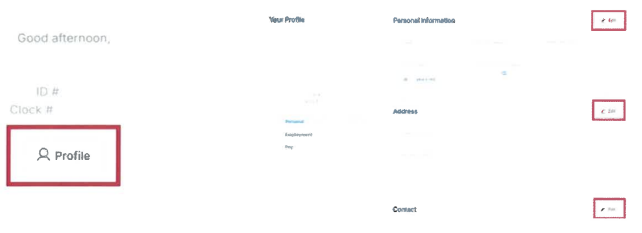
- Login to Empeon and click on the profile button.
- Select which area you would like to update and click 'edit'.
- Enter information being updated and click 'Submit for Approval'.
Research Foundation Employees: Update the Payroll Parking Deduction Agreement (PDF) form and initial that you wish to Stop Existing Payroll Parking Deduction. Be sure to specify the effective date. Submit by sending the completed form to FND-HR@csulb.edu.
Stateside Employees: Reach out to CSULB Payroll Services and let them know that you no longer want to park at the Research Foundation parking lot and to cancel your parking payroll deduction.
Form W - 2
Active employees can access W-2s through Empeon ESS. Former employees will receive W-2s by mail by January 31.
Complete the Request for IRS W-2 Form (PDF) and submit it to Payroll at FND-Payroll@csulb.edu.
Tax Information
You can make changes to your Federal or State withholdings at any time through your Empeon ESS account at least 5 business days prior to any payroll.
- Login to Empeon and click on the profile button.
- Select 'Pay'
- Select Edit in the area you wish to update (Tax Withholding). Enter information being updated and click 'Submit for Approval'.
Employee Self Service (ESS)
Update your settings in Empeon ESS or submit a completed Direct Deposit Authorization (PDF) form to Payroll at FND-Payroll@csulb.edu.
Updates can be made at any time through Empeon ESS or by submitting a completed Direct Deposit Authorization (PDF) form to Payroll at FND-Payroll@csulb.edu.
- Login to Empeon and click on the profile button.
- Select 'Pay'
- Select Edit in the area you wish to update (Direct Deposit). Enter information being updated and click 'Submit for Approval'.
If you are an active employee, reach out to the payroll department at FND-PAYROLL@csulb.edu or 562.985.8486 or 562.985.8487 to activate your ESS account by confirming your email address.
- Log in to your Empeon ESS account.
Use the menu on the left and select Paystubs
Image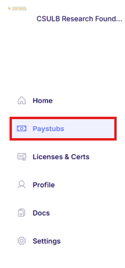
On the right side, you will find a drop down after YEAR. Select the year you want to see your paystub information.
Image
Reporting Other Absences
For Benefited employees only
Enter Code B under 'Type of Hours' for each applicable day. Refer to CSULB Employee Handbook (section 309).
Enter Code JD under 'Type of Hours' for each applicable day. Refer to CSULB Employee Handbook (section 311)