Document Tracker
This document aims to inform and guide end-users on using the Document Tracker feature in CSULB's Drupal CMS. Send feedback or questions to wdc@csulb.edu (ITS Web Development Center's email group).
Purpose
The Document Tracker was originally created in partnership with the accessibility team to help track document remediation statuses in the Drupal CMS. Recognizing the tracker's benefits for content owners, WDC decided to make the feature available to Group Admins as well.
As of Nov 21, 2025, the Document Tracker offers:
- Listing of documents (per Group)
- Filter documents by file name, page title, group, and page status.
- Exporting of document list
- Setting of Accessibility Status per document
Note: Document Tracker only records files that are uploaded via Drupal. Documents that are hosted externally ARE NOT tracked.
Note" Document Tracker DOES NOT remediate documents; it tracks and lists documents for the end-users.
Access
Only the end-users with the roles below in CSULB's Drupal CMS have access to the Document Tracker:
| Roles | Notes |
|---|---|
| Group Admins | Drupal-level role that has the highest access scope within Groups |
| Accessibility Analyst | This role is given to members of the Accessibility team |
| Administrator | Super users of Drupal i.e. programmers from WDC |
Prerequisite
To correctly track documents in the Drupal CMS, the content editor should use the LinkIt module or add the document via the Media Library. If a new document needs to be added, the Media Library can be used to do so.
Linking Documents via LinkIt Module
While in the CKEditor (also known as the text editor), highlight the text that needs to link to the document.
Image
Click on the chain icon Link tool and enter the name of the file to link (assuming the file was already uploaded).
Image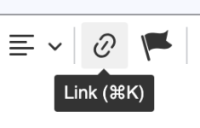
If there are a lot of matches resulting from the typed filename, the end-user will need to scroll down under the "File” header and find the desired file.Click on the file to be added.
Image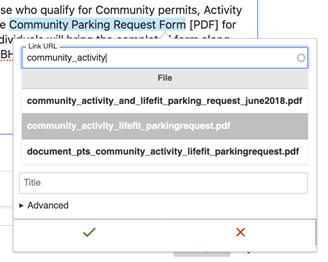
Finally click on the green checkmark to add the link.
Image
Adding Documents via Media Library
- While in the CKEditor (also known as the text editor), click on the Insert Media tool.
- On the left sidebar of the modal, click on Document.
- Select the document that needs to be added to the text editor.
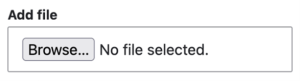
Note: if a new document needs to be added, simply click the "Browse” button under "Add file” section and select the file to be uploaded from your local computer. If the end-user remembers the file name, then the LinkIt module can be used to link the newly uploaded document in the CKEditor.
Feature Usage
After the Document Tracker scans all documents within the CMS, the end-user can now make use of its features.
Navigating to the Document Tracker
- The tracker can be found at the toolbar on top, click on Manage > then Document Tracker (right next to Groups).
- After the page loads, a list will be presented that has the 6 columns, namely:
- File/Media Edit Link
- Accessibility Status
- Content Type
- Node Status
- Node Title
- Group (title)
Note: Document Tracker only display files that are part of the current logged-in user's Group membership.
Applying Filters
Four data filters can be applied to the list, namely:
- Filename - use this filter to search for documents based on their file name.
- Node Title - use this filter to search for specific pages that were recorded by the tracker.
- Group - this filter can be used to search for groups; this is useful if the logged-in user is part of multiple groups.
- Content Status - this filter can be used to check for pages with specific publishing statuses.
Exporting Data
The Document Tracker also supports exporting the displayed table. The exporter automatically includes what is currently shown—so if the table is filtered to "Draft" pages, the CSV will contain only those "Draft" entries. To export the Document Tracker data, click on the Download button.
Updating/Replacing a Document
If a document needs to be updated, the Group Admin can do so by clicking the File/Media Edit Link field row. Key points to keep in mind:
- If replacing a file, make sure the new file has the same file extension (.pdf to .word won't work).
- While it's not required, it's recommended to add a note or comment in the "Revision log message" field describing the change made to the file.
Note: When replacing a document, make sure Overwrite original file is CHECKED. This preserves the original filename, preventing any existing links that reference it from breaking.
Setting the Accessibility Status of a Document
As part of the ADA Title II effort, the accessibility status of a document can be now be set. This can be done by clicking the File/Media Edit Link field row and navigating to the Accessibility Status section below the form.
| Status | Notes |
|---|---|
| N/A | This status means no status has been set on the document. |
| Accessible | Only end-users with the Accessibility Analyst role can apply this status. It indicates the document has been reviewed and meets accessibility standards. |
| Exempt | Indicates the document meets an exception based on ADA Title II documentation standards. Reasons include: Preexisting conventional electronic documents created prior to April 24, 2026 and is held for reference or recordkeeping purposes without being modified such as meeting minutes or newsletters. |
| Printable Alternative | Indicates content is likely defensible under "minimal impact on accessibility", and should only be used when content is fully duplicated in an accessible format on the web or a printable or otherwise accessible alternative can be provided upon request. |
| Reviewed | Indicates:
|
When setting an Accessibility Status, please provide a brief corresponding comment in the "Revision log message" field.
Known Bugs
While Document Tracker is somewhat new to CSULB's CMS and the contributed Drupal module used to track documents is also in Alpha stage - this project may contain a few bugs. If you experience unexpected behavior or a bug, please submit a ticket or chat with us via the Web Subgroup Meeting - Coderie Teams chat.
Tracking of Images
- Document Tracker records some images in pages and lists them in the tracker. After tracking the image, Document Tracker might contain a broken "File/Media Edit Link" link and will also have "Error: Invalid data." accessibility status. This bug is currently being investigated by the WDC team and will be resolved in a future Sprint.
Missed Document Scans
- There have been reports of missing documents—files not scanned by the Document Tracker. This issue occurs when the required attributes are not added in the text editor. To resolve this issue, make sure to link the document via LinkIt module or use the Media Library.
Broken File/Media Edit Link
- If you click the edit link for a File/Media item and the page simply reloads—or the Edit form never appears—it likely means the tracked file does not have an associated Media entity. This typically occurs with files created during the early stages of the Drupal implementation, before Media entities were used.